
Social Media Position
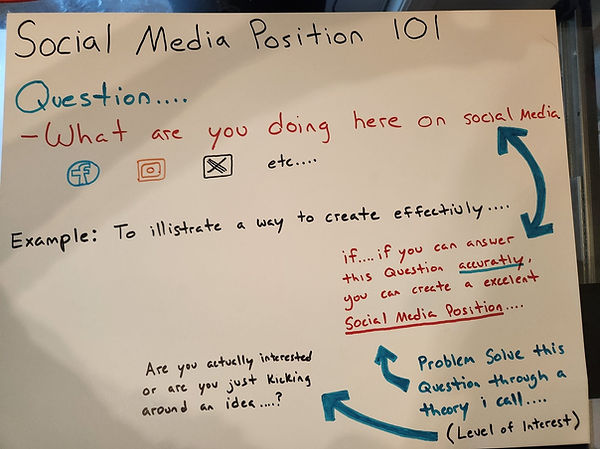
1st Step
Use this page which is called Social Media Position aka "Whatcha doing here online?" to create the very first thing you need to do.
Alot of people get online and just set up a profile, with KSMPC you actually get to CREATE a profile.
Foundation set up design

2nd Step
Use this one second, this page is called your Foundation set up design. You need to use this exactly how it says, you can even look at my own personal account to see an example.
Anchor photo: Create a photo out of your bio description
Signature move: Combined why you're online, personal favorite smile, and a little bit about what you're doing online and take a photo, you can combine this formula to create a business photo also.
Social Media Stucture

3rd Step
Use this one last, it's called Social Media Structure, it shows you a way to keep your account aligned with your Position and Foundation which is page 1/2.
Start where it says 1 and follow the funnel, once you understand why I created this 3rd page you will be on your way to understanding structure and understanding.
My Social Remote
Final Step
After you completely set up your My Social Remote, you can set up your actual (Remind Me Remote diagram). It allows you to look at your Social Media foundation at its simplest form so you can post, create, post and repeat.

Remote Screen
The "screen" on the remote will have the original reason of why you're on social media, use this to remind yourself so you keep your content structured correctly.
# Topic Select
Profile Bio # topic select: Once your foundation is set up, use your #'s you created that are in your bio to make it easier to understand the content you want to create.
1-9
1-9: You can use these to create 9 tips to assist you in creating your online content.
Volume of Content
Volume of Content: How excited you are about the piece of content you're creating.
Settings
Setting: Once finished creating your content, you can review and then smash the enter button.